Post-Install fixes for CachyOS with Niri and Noctalia
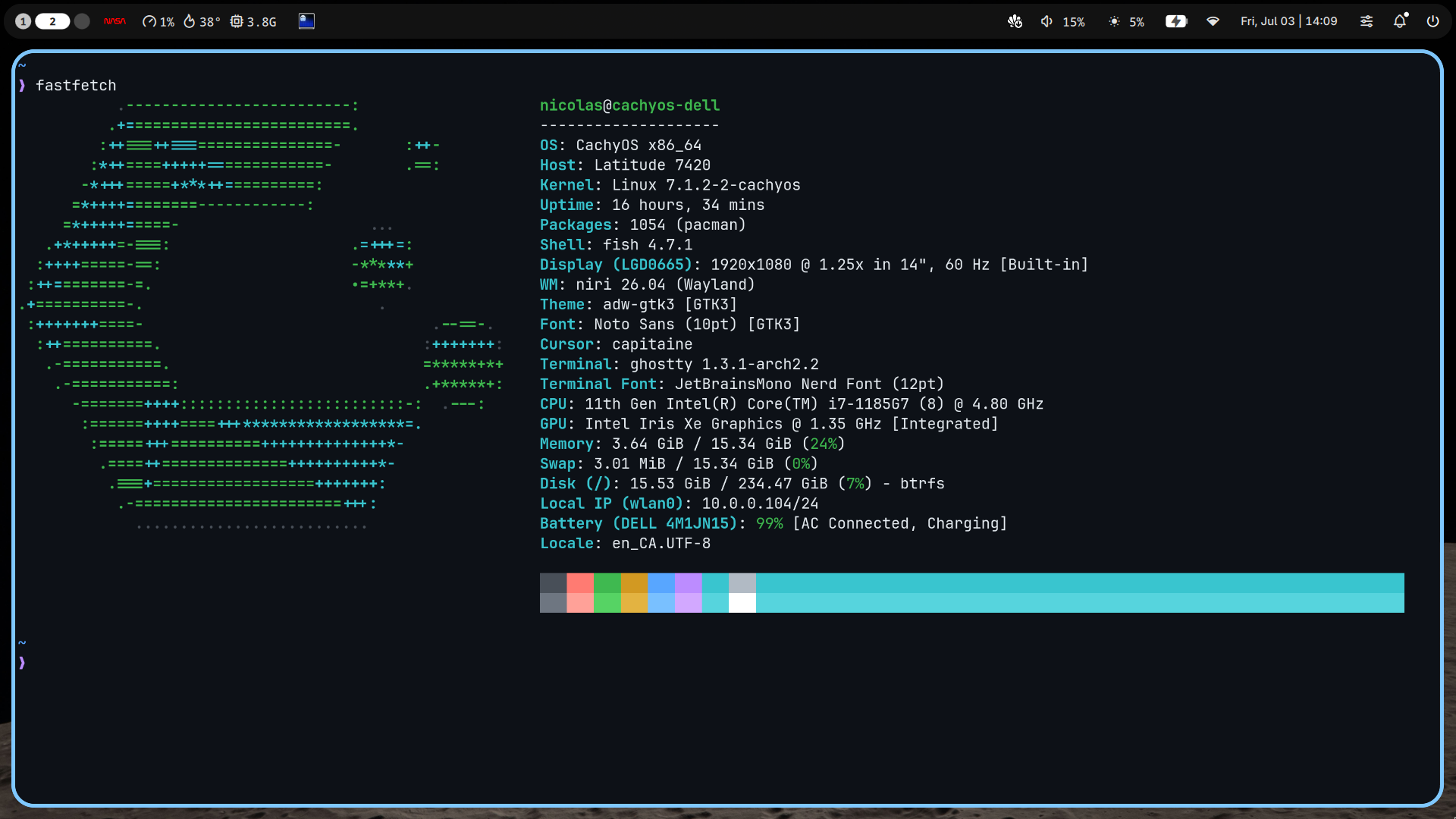
Table of Contents
I’ve recently migrated my Latitude 7420 2-in-1 laptop from Windows 11 to CachyOS (Niri/Noctalia) and while the out of the box/post fresh install experience is great, it’s not perfect.
The more I’m using the OS (and especially the Niri compositor), the more I’m finding small tweaks that needs to be made to make it work for me. I’ve documented all of them along the way to keep track of them. I’m sharing them here to help anybody else who might encounter the same issues.
Versions used (at the time of publication)
niri 26.04 (8ed0da4)
noctalia-qs 0.0.12-1.1
noctalia-shell 4.7.7-3
cachyos-niri-noctalia 1.1.2-1
Enable Lockscreen on suspend (lid closed)
I expected to get the same behaviour than on Windows, but by default Niri doesn’t lock the screen and brings you right back where you left off on your desktop. There is a “Lock on suspend” setting in Noctalia but even after enabling it, it doesn’t work. A relevant issue has been created on Github - Issue 2036 - but the Noctalia devs closed it as they are focusing on the v5 rewrite of the application.
To fix this, add the following in ~/.config/niri/config.kdl if you are using noctalia v4 (noctalia-shell).
switch-events {
    lid-close {
        spawn "qs" "-c" "noctalia-shell" "ipc" "call" "lockScreen" "lock"
    }
}
Change keyboard layout
My laptop is using the French-Canadian keyboard layout and I wasn’t able to find the exact match in the CachyOS installer, so I had to modify it in Niri post-install.
# Edit the input.kdl file
nano ~/.config/niri/cfg/input.kdl

# Change the following
keyboard {
	xkb {
		//If you want to overwrite your keyboard layout,
		// uncomment the line below and change the layout accordingly.
		layout "ca" // Use the Canadian French keyboard layout
	}
	numlock // Enable numlock on startup
}
Disable the fastfetch greeting in the terminal
I used the default terminal (Alacritty) for a couple of days before jumping to Ghostty, and on both of them, a fastfetch like greeting showed up whenever I opened a new instance. To disable it, un-comment the fish_greeting function in ~/.config/fish/config.fish.
# overwrite greeting
# potentially disabling fastfetch
function fish_greeting
    # do nothing
end
Open Firefox/Obsidian maximized
This one is more of a preference as I’m often working on my laptop without plugging an additional monitor. Having to manually maximize these apps each time to 100% (50% is the default) was a hassle, so I automated it.
nano ~/.config/niri/cfg/rules.kdl

// Firefox
window-rule
{
	match app-id="firefox"
	open-maximized true
}

// Obsidian
window-rule
{
	match app-id="obsidian"
	open-maximized true
}
Disable touchpad while typing
I’m not sure if the touchpad is more sensitive on Linux than on Windows, but multiple times I accidentally touched the touchpad while typing and it moved my cursor focus, so I had to disable it.
nano ~/.config/niri/cfg/input.kdl

touchpad {
	// Add this line
	dwt // dwt : disable-when-typing
}
Fix HDMI audio output not working
I plugged my laptop to my TV to watch a World Cup game and the audio output defaulted to the laptop instead of the TV. I asked Claude to help me as I didn’t know anything about the audio stack on Linux and a few minutes later I had a fix in place.
On a modern Linux system like CachyOS, audio goes through multiple layers:
PipeWire is the audio server - the core engine that handles all audio routing. It replaced the older PulseAudio server ( PipeWire ships with a compatibility layer called pipewire-pulse that emulates the PulseAudio API). Every app (Firefox, Spotify, etc.) sends its audio to PipeWire, which routes it to the right hardware output.
pactl is a PulseAudio command-line tool. On CachyOS we’re running PipeWire, not PulseAudio - but because of the pipewire-pulse compatibility layer, pactl works and talks to PipeWire transparently.
WirePlumber is PipeWire’s session manager. It sits on top of PipeWire and handles the policy decisions - things like which device to use by default, what to do when a new device is plugged in, and how to manage audio streams across applications. Think of PipeWire as the engine and WirePlumber as the brain that tells it what to do.
wpctl is WirePlumber’s own command-line tool, which speaks natively to PipeWire/WirePlumber without the PulseAudio compatibility layer.
# Check available sinks (software object PipeWire creates to represent an audio output)
wpctl status

# If no HDMI devices is listed under "Audio > Sinks", set the card profile to one that exposes HDMI
# Find your card
pactl list cards short
# outputs something like: alsa_card.pci-0000_00_1f.3

# List its profiles - Look for a profile like output:hdmi-stereo or output:hdmi-stereo-extra1,
pactl list cards | grep -A50 "alsa_card"

# The command to set the card profile is the following: pactl set-card-profile <card-name> output:hdmi-stereo. For my card:
pactl set-card-profile alsa_card.pci-0000_00_1f.3 output:hdmi-stereo

# Then set it as default
wpctl status   # get the new HDMI sink ID
wpctl set-default 51
Manage external monitors and their configurations
I expected to have a nice GUI to manage external monitors like on Windows but you don’t have one out-of-the-box with CachyOS/Niri/Noctalia.
Niri is recommending Kanshi in their FAQ so that’s what I went with.
The nice thing with Kanshi is that you can create multiple configurations (laptop only, laptop and a specific monitor, laptop/TV) and also specify the sound output for each profile. There’s no GUI though, so you have to manage your configuration in a text/config file.
# Install kanshi
sudo pacman -S kanshi

# Launch Kanshi at startup
nano ~/.config/niri/config.kdl
# Add this line in the config file
spawn-at-startup "/usr/bin/kanshi"

# Create Kanshi config folder and file
mkdir -p ~/.config/kanshi && touch ~/.config/kanshi/config
# List displays
niri msg outputs

# Example
Output "Dell Inc. DELL AW2723DF HFFHNP3" (HDMI-A-1)
  Current mode: 2560x1440 @ 59.951 Hz (preferred)
  Variable refresh rate: not supported
  Physical size: 600x340 mm
  Logical position: 0, 0
  Logical size: 2560x1440
  Scale: 1
  Transform: normal
  Available modes:
    2560x1440@59.951 (current, preferred)
    2560x1440@143.912
    2560x1440@119.998
    1920x1080@120.000
    1920x1080@119.880
    1920x1080@60.000
    1920x1080@60.000
    1920x1080@59.940
    1920x1080@50.000
    1920x1080@30.000
    1920x1080@29.970
    1920x1080@25.000
    1920x1080@24.000
    1920x1080@23.976
    1600x900@60.000
    1280x1024@75.025
    1280x1024@60.020
    1152x864@75.000
    1280x720@60.000
    1280x720@59.940
    1280x720@50.000
    1024x768@75.029
    1024x768@60.004
    800x600@75.000
    800x600@60.317
    720x576@50.000
    720x480@60.000
    720x480@60.000
    720x480@59.940
    720x480@59.940
    640x480@75.000
    640x480@60.000
    640x480@59.940
    640x480@59.940
    720x400@70.082

Output "LG Display 0x0665 Unknown" (eDP-1)
  Current mode: 1920x1080 @ 60.020 Hz (preferred)
  Variable refresh rate: not supported
  Physical size: 310x170 mm
  Logical position: 2560, 0
  Logical size: 1536x864
  Scale: 1.25
  Transform: normal
  Available modes:
    1920x1080@60.020 (current, preferred)
    1920x1080@48.016
Niri places all displays on a single virtual coordinate grid. Every display gets an x,y position that defines where its top-left corner sits on that grid. The cursor moves between displays by crossing the edges where they meet - so the position you assign to each display directly determines which physical direction you move the mouse to reach it.
The origin 0,0 is the top-left corner of the grid. x increases to the right, y increases downward.
Positions use logical pixels, not physical pixels. When a display has a scale applied, its logical size is smaller than its native resolution: logical size = physical resolution ÷ scale.
This matters when calculating positions, because displays must be placed edge-to-edge using their logical sizes, not their native resolutions. If you use the wrong number there will be a gap or overlap in the grid where the cursor gets stuck.
For my setup:
Profile: Dell monitor + laptop (position 0,1440)

         x=0
    y=0   +----------+
          |   Dell   |          ← 2560×1440, scale 1.0, logical 2560×1440
   y=1440 +----------+
          |  Laptop  |          ← 1920×1080, scale 1.25, logical 1536×864
   y=2304 +----------+
          cursor moves UP to reach the Dell, DOWN to come back to the laptop

Profile: Samsung TV + laptop (position 0,1080)

         x=0
    y=0   +----------+
          |    TV    |          ← 3840×2160, scale 2.0, logical 1920×1080
   y=1080 +----------+
          |  Laptop  |          ← 1920×1080, scale 1.25, logical 1536×864
   y=1944 +----------+
          cursor moves UP to reach the TV, DOWN to come back to the laptop
In Kanshi’s config file (~/.config/kanshi/config), add your profiles:
# Laptop only
profile {
    output eDP-1 enable scale 1.25
    exec pactl set-card-profile alsa_card.pci-0000_00_1f.3 output:analog-stereo+input:analog-stereo
    exec pactl set-default-sink alsa_output.pci-0000_00_1f.3.analog-stereo
}

# Laptop + Dell monitor (monitor on top, laptop below)
profile {
    output "Dell Inc. DELL AW2723DF HFFHNP3" mode 2560x1440@119.998 scale 1.0 position 0,0
    output eDP-1 enable scale 1.25 position 0,1440
    exec pactl set-card-profile alsa_card.pci-0000_00_1f.3 output:analog-stereo+input:analog-stereo
    exec pactl set-default-sink alsa_output.pci-0000_00_1f.3.analog-stereo
}


# Laptop + Samsung TV (TV on top, laptop below)
profile {
    output "Samsung Electric Company SAMSUNG 0x01000E00" enable scale 2.0 position 0,0
    output eDP-1 enable scale 1.25 position 0,1080
    exec pactl set-card-profile alsa_card.pci-0000_00_1f.3 output:hdmi-stereo+input:analog-stereo
    exec pactl set-default-sink alsa_output.pci-0000_00_1f.3.hdmi-stereo
}
Kill and restart Kanshi to apply the changes
# Kill and restart Kanshi
pkill kanshi && kanshi &
Save screenshots to a dedicated folder
By default, screenshots are not saved so you have to change Niri’s settings if you want to save them.
nano ~/.config/niri/cfg/misc.kdl
# Replace "screenshot-path null" by
screenshot-path "~/Pictures/Screenshots/Screenshot from %Y-%m-%d %H-%M-%S.png"
Update SDDM theme to your liking
The login screen on CachyOS with Niri + Noctalia is managed by SDDM (Simple Desktop Display Manager). It’s a display manager, which is the program responsible for showing the graphical login screen before the desktop environment starts. By default, the theme is very barebone but you can change it.
I used the SilentSDDM theme.
# Verify you're actually using SDDM
systemctl status display-manager

# Copy the theme into /usr/share/sddm/themes/
sudo cp -r silent /usr/share/sddm/themes/

# Edit theme in the conf file where `silent` is the folder name inside /usr/share/sddm/themes/
sudo nano /etc/sddm.conf
# Add or edit:
[Theme]
Current=silent

# Test the theme (Super+Q to exit)
cd /usr/share/sddm/themes/silent/
./test.sh

#Reboot
sudo reboot
Fix touchpad one-finger output not working after suspend
My touchpad wasn’t working with one finger after a long suspend period but was still working with two fingers. This is a known bug on CachyOS with touchpads using the hid_multitouch / i2c_hid driver. After suspend, the touchpad comes back in a broken state where single-finger tracking doesn’t register properly but multi-finger gestures still work. There’s an open
issue tracking this bug: GNOME Desktop: Touchpad click/tap actions break after standby (random) - 715
# Quick fix - Reload the driver
sudo modprobe -r hid_multitouch && sudo modprobe hid_multitouch

# Permanent fix - auto-reload the module on every resume
sudo nano /usr/lib/systemd/system-sleep/touchpad-fix.sh

# Add this
#!/bin/bash
case "$1" in
  post)
    modprobe -r hid_multitouch
    modprobe hid_multitouch
    ;;
esac

# Make it executable
sudo chmod +x /usr/lib/systemd/system-sleep/touchpad-fix.sh
Wrapping up
That’s everything I’ve had to fix so far to make CachyOS/Niri/Noctalia feel like home. None of these are dealbreakers on their own, but together they made the difference between “this is a nice OS” and “this is my setup.”
I’ll keep updating this post as I run into new quirks, so if you’re on the same distro/compositor combo and hit something not covered here, feel free to reach out — I’m always curious what other people have had to tweak too.